
Download PDF2Office – Free PDF to iWork Converter, Secure & Easy
Overview
PDF2Office for iWork 2017 is a lightweight, free application designed to bridge the gap between PDF documents and Apple’s iWork suite (Pages, Keynote, and Numbers). Whether you are a student preparing a presentation, a business professional updating a spreadsheet, or a writer polishing a manuscript, PDF2Office lets you transform static PDF files into fully editable iWork formats without sacrificing layout, fonts, or images. The tool supports password‑protected PDFs (the password must be entered once before conversion) and includes a built‑in iOS display optimizer, making it an ideal companion for Mac, iPhone, and iPad users who need to work on the go.
By offering granular control over conversion options—such as page‑range selection, image removal, and font substitution—PDF2Office empowers users to tailor the output to their exact needs while keeping the process simple and secure. Because the software is free, it provides a cost‑effective alternative to paid PDF conversion suites, and its intuitive interface means that even non‑technical users can start converting files within minutes. In the sections that follow, we’ll explore the core features, walk through the installation and usage steps, examine platform compatibility, and weigh the pros and cons to help you decide whether PDF2Office is the right tool for your workflow.
Key Features
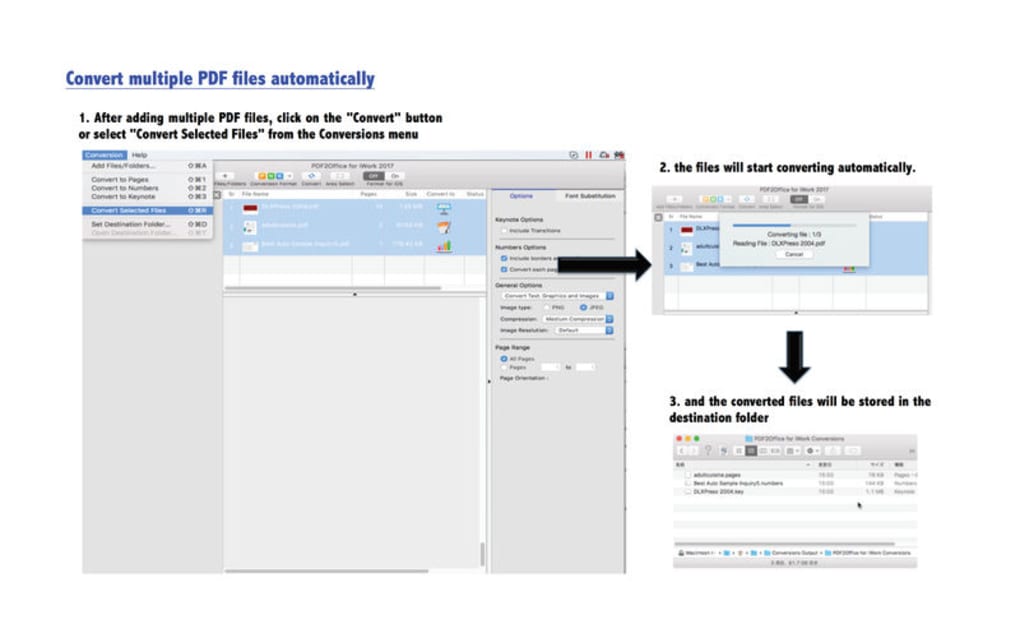
- Direct conversion to iWork formats – Export PDFs straight to Pages, Keynote, or Numbers files, preserving most of the original layout.
- Selective page range – Convert only the pages you need, saving time and reducing file size.
- Image handling options – Choose to keep, replace, or remove images during conversion.
- Font substitution – Map missing fonts to system‑available alternatives to avoid layout glitches.
- Password‑protected PDF support – Enter the PDF password once, then convert without additional hurdles.
- iOS display optimization – Automatically adjusts output for optimal viewing on iPhone and iPad.
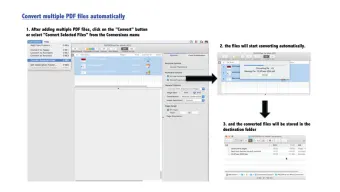
- Batch processing – Convert multiple PDFs in one session, perfect for large projects.
- Free license – No hidden fees, no subscription, and no trial period limits.
- Lightweight installer – Small download size ensures quick installation on Mac systems.
- Regular updates – The developer provides periodic updates to improve compatibility with the latest iWork versions.
Installation, Usage & Compatibility
Getting started with PDF2Office is straightforward. Follow these steps to install and begin converting PDFs:
- Download the installer: Visit the official PDF2Office website and click the “Download for macOS” button. The file is a
.dmgpackage, typically under 25 MB. - Mount the DMG: Double‑click the downloaded file to open the installer window. Drag the PDF2Office icon into the Applications folder.
- Launch the app: Navigate to your Applications folder and double‑click PDF2Office. macOS may prompt you to confirm that you trust the developer; click “Open” to proceed.
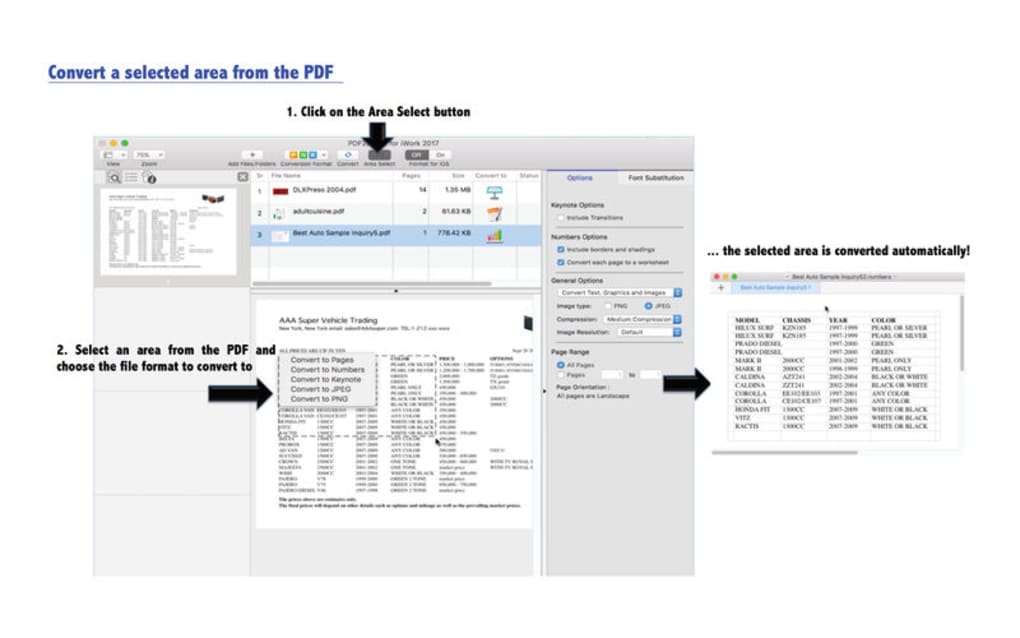
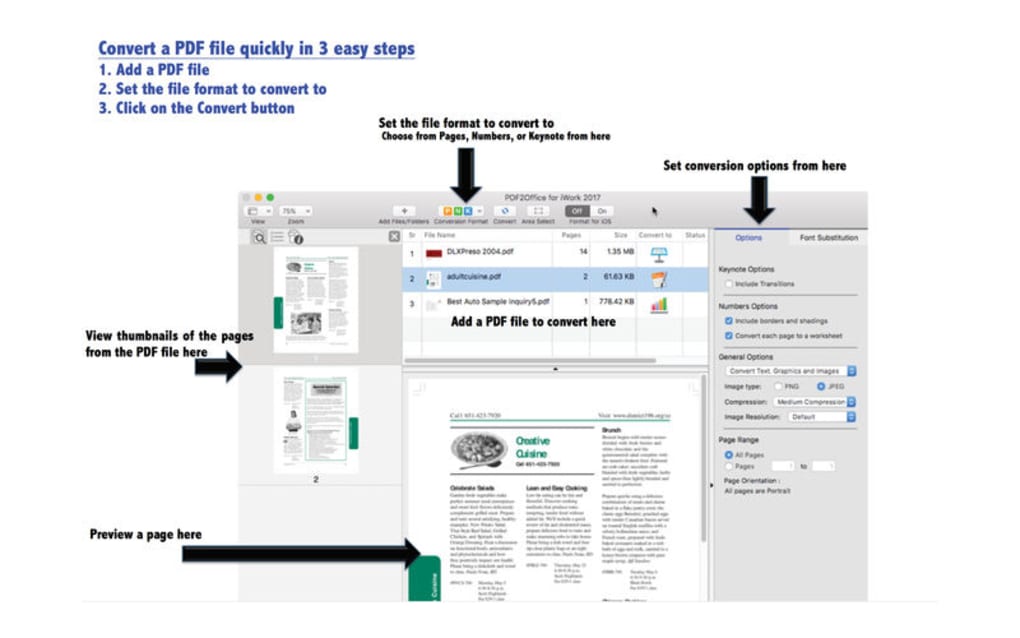
- Import a PDF: Click the “Add PDF” button, browse to the file you want to convert, and select it. If the PDF is password‑protected, you’ll be asked to enter the password at this stage.
- Choose conversion settings: In the settings pane, select the target iWork application (Pages, Keynote, or Numbers). Adjust options such as page range, image handling, and font substitution according to your preferences.
- Start conversion: Press “Convert”. PDF2Office will process the file and save the output in the same folder as the original PDF, appending the appropriate iWork extension (.pages, .key, .numbers).
- Open in iWork: Double‑click the newly created file to open it directly in the corresponding iWork app for further editing.
Compatibility – PDF2Office is built specifically for macOS 10.12 (Sierra) and later. It runs natively on Intel‑based Macs as well as Apple Silicon (M1/M2) devices, thanks to Apple’s Rosetta 2 translation layer when needed. The iOS display optimizer ensures that converted files render cleanly on iPhone 12 and later, as well as iPadOS 15+. While the application is not available for Windows, Android, or Linux, Mac users benefit from tight integration with the Apple ecosystem, making it a seamless addition to any workflow that relies heavily on iWork.
Pros and Cons
Pros
- Completely free with no hidden costs.
- Native conversion to Pages, Keynote, and Numbers preserves formatting better than generic PDF‑to‑Word tools.
- Granular control over images, fonts, and page ranges.
- Supports password‑protected PDFs.
- iOS display optimization for mobile editing.
- Lightweight installer and fast conversion speed.
- Batch processing saves time on large projects.
Cons
- Only available for macOS; Windows users must seek alternatives.
- Complex PDFs with heavy vector graphics may lose some fidelity.
- No built‑in OCR; scanned image PDFs need separate OCR preprocessing.
- Limited advanced editing features (e.g., no direct PDF annotation).
- Occasional font‑substitution warnings when the source PDF uses rare fonts.
Frequently Asked Questions
Can PDF2Office convert scanned PDFs?
PDF2Office does not include optical character recognition (OCR). If your PDF is a scanned image, you’ll need to run an OCR tool first to convert the image to selectable text before using PDF2Office.
Is there a limit to the number of pages I can convert at once?
There is no hard‑coded page limit, but extremely large PDFs (over 500 pages) may take longer to process and could consume more memory. Using the page‑range feature can help manage performance.
Do I need an internet connection to use PDF2Office?
No. PDF2Office is a fully offline application. Once installed, all conversions happen locally on your Mac, ensuring privacy and security for sensitive documents.
Can I convert a PDF directly to a PowerPoint file?
PDF2Office is focused on iWork formats only. For PowerPoint (.pptx) conversion you would need a different tool, such as PDF2Office for Microsoft Office or other third‑party converters.
How often is PDF2Office updated?
The developer releases updates roughly every 6–12 months, primarily to ensure compatibility with new iWork releases and macOS updates. Users are notified of new versions within the app.
Conclusion & Call to Action
PDF2Office fills a niche that many Mac users overlook: a free, dedicated bridge between PDFs and the iWork family. Its ability to retain layout, handle password‑protected files, and optimize output for iOS devices makes it a practical choice for educators, freelancers, and business teams who rely on Pages, Keynote, or Numbers for daily work. While the lack of Windows support and OCR capabilities may be a drawback for some, the overall value—especially considering it costs nothing—far outweighs these limitations for the target audience. If you frequently receive PDFs that need tweaking in iWork, downloading PDF2Office will save you time, reduce the need for paid conversion services, and keep your workflow entirely within the Apple ecosystem.
Ready to convert your PDFs instantly? Click the download button below, install PDF2Office, and start editing iWork documents with confidence.
PDF2Office delivers a smooth, free solution for converting PDFs to iWork formats. The interface is clean, conversion speed is impressive, and the iOS optimization is a thoughtful touch. Minor quirks with rare fonts keep it from a perfect score, but overall it’s a must‑have for Mac‑centric users.







